 StreamFCMatchday & TV guide
Install StreamFC on Fire TV
Five steps with your remote. Most of the time is the download.
- 1
Install Downloader
On the Fire TV home screen, search the Appstore for Downloader by AFTVnews and install it.
It is free. It is how the file gets onto your TV.
- 2
Let Downloader install apps
Go to Settings > My Fire TV > Developer options > Install unknown apps, find Downloader in the list, and switch it ON.
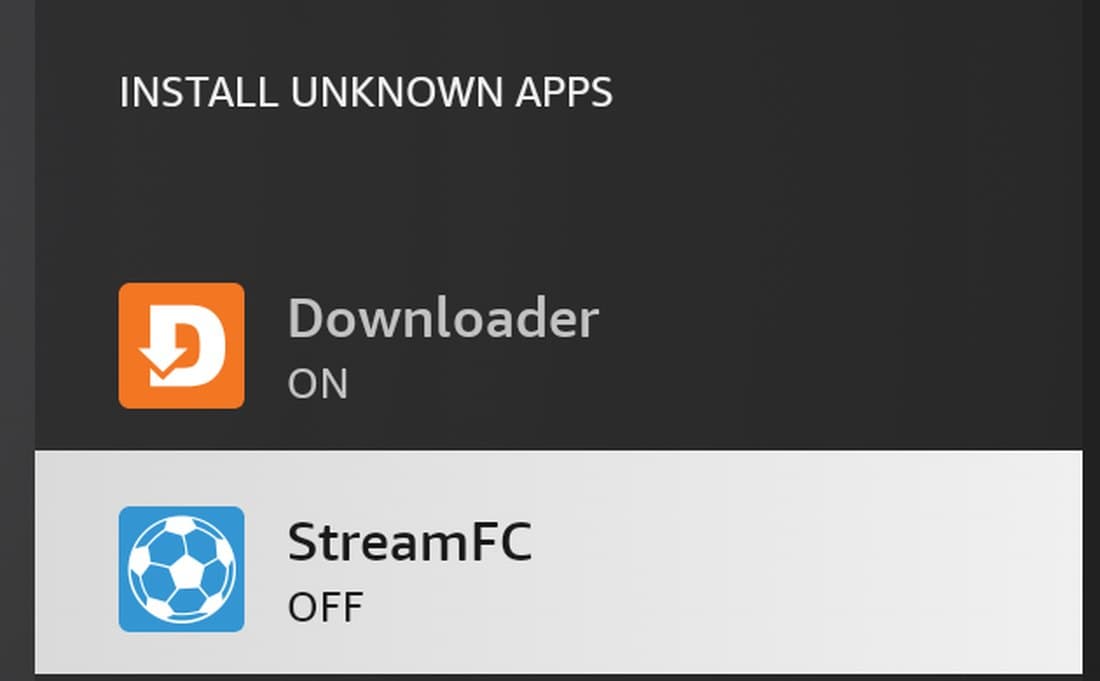
Only Downloader needs to be ON right now. No Developer options? Open Settings > My Fire TV > About, select the device name seven times, then go back. It appears.
- 3
Enter the code
Open Downloader. Type this into the box at the top, then select Go.
6122536

The box at the top of Downloader. Prefer typing an address? Use streamfc.com/fire/apk instead.
- 4
Install it
When the download finishes, Fire TV asks to install. Press right to reach INSTALL, then Open.

Fire TV starts on CANCEL, so press right. That is the install done. You can delete Downloader if you like.
- 5
Later: let StreamFC update itself
StreamFC updates itself, with no store involved. The first time it offers an update it needs the same permission you gave Downloader.
Go to Settings > My Fire TV > Developer options > Install unknown apps once more, switch StreamFC ON, then press Update.
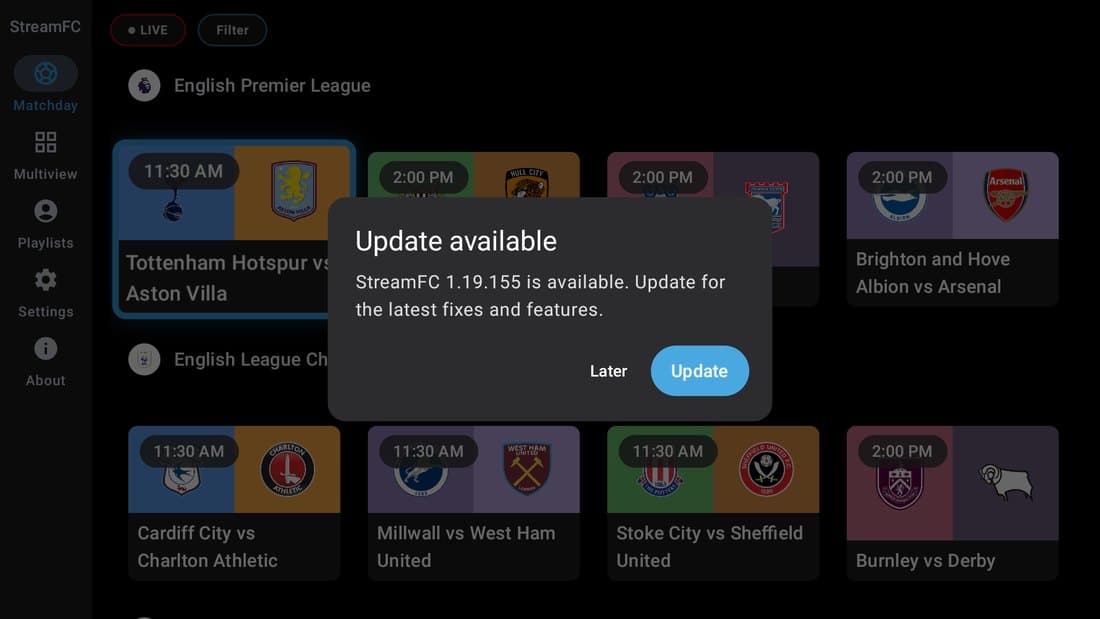
Every update after this one is just this dialog.
Testing an early build?
Code 4387515 installs the next build before it goes out to everyone. Use 6122536 above unless you were asked to test.
Works on
Fire TV Stick and Fire TV Cube running Fire OS 7 or 8, and Android TV / Google TV boxes without Play access. Tested on Fire OS 8 and on Android 14. If your Fire TV runs Amazon's newer Vega OS rather than Fire OS, it does not run Android apps and this will not work.
It is the same app as on Google Play, signed with the same key, so Play can update it in place later without uninstalling. It uses your StreamFC account and counts toward your 5-device limit.
If something goes wrong
- “App not installed”
- An older Play copy with a different signature is installed. Uninstall it first, then retry.
- “Install blocked”
- Allow StreamFC in Install unknown apps (step 5).
- Download stuck
- Check Wi-Fi. It is a big download, so give it a few minutes.